Customer Settings & Alerts
Last updated 21 days ago
Pay Advantage gives you flexibility to manage settings and notifications for individual customers, as well as set defaults across your entire customer base.
You can update a customer's contact details, add internal notes, manage the email notifications they receive and generate their BPAY details directly from their customer profile. For settings you want to apply more broadly, Customer Settings allows you to manage your default preferences in one place.
Customer Details
To view or update an individual customer:
Select Customers from the left-hand menu.
Find and open the relevant Customer Profile.
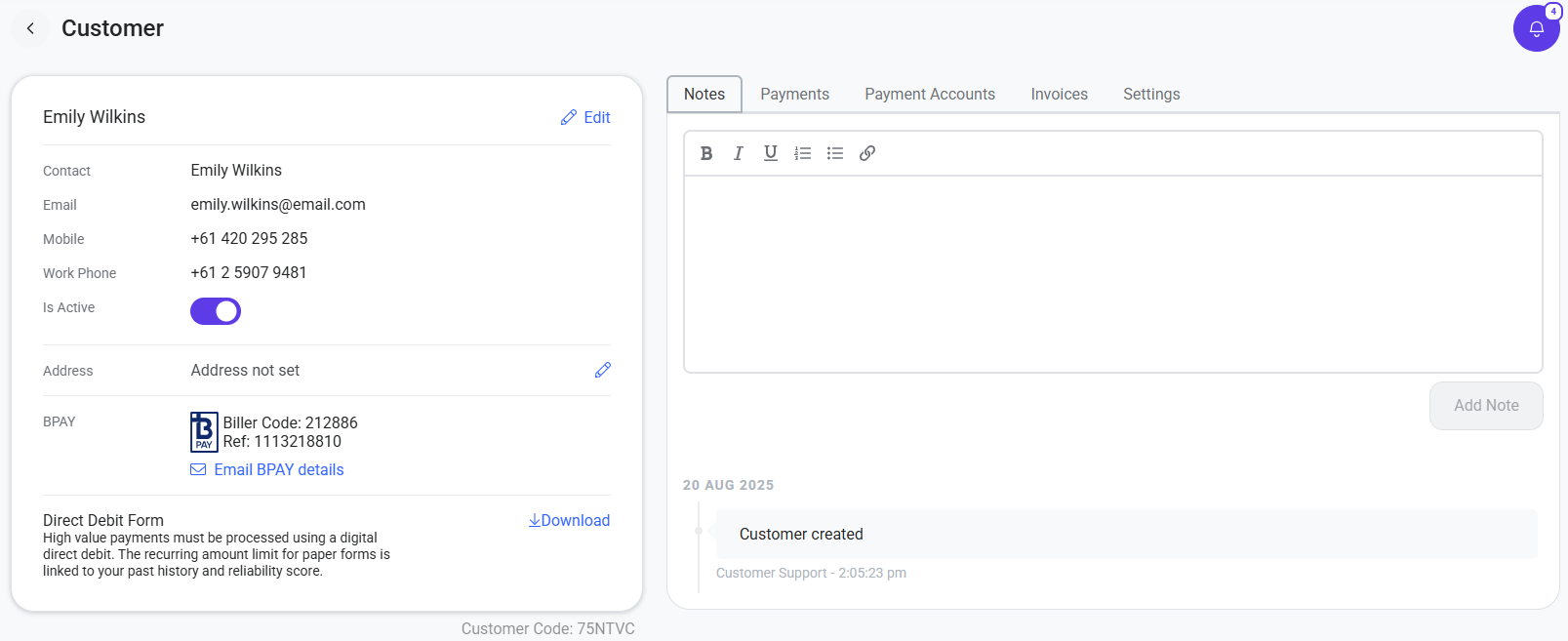
Select the pencil/Edit icon next to the customer's name to update their details.
Make your changes and save.
Add Customer Notes
You can also add notes to a customer profile using the Notes section on the right-hand side of the page.
These notes are for internal use only and aren't visible to the customer, making them useful for keeping additional information or context about the customer in one place.
Generate BPAY Details
If your customer needs to make payments using BPAY, you can generate their BPAY details directly from their profile.
Simply select the BPAY icon on the customer profile. Pay Advantage will automatically generate a unique BPAY reference number for that customer, allowing payments to be identified and matched to their profile.
Manage Customer Email Notifications
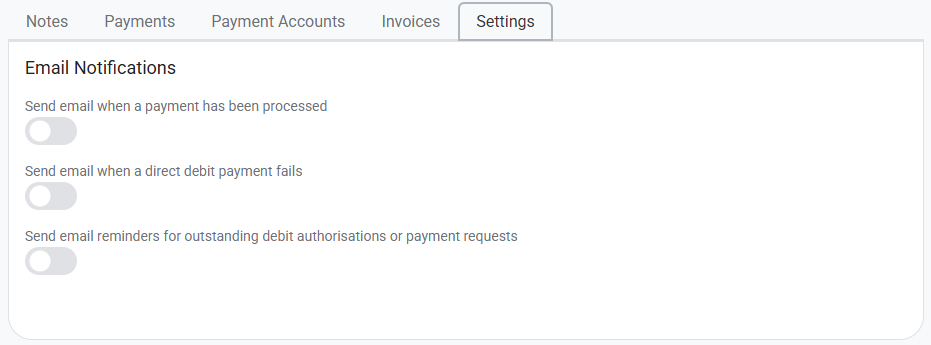
You can customise which Pay Advantage email notifications an individual customer receives.
From the customer's profile, open their notification settings and select the email notifications you'd like them to receive.
This is useful when a particular customer has different communication preferences from your standard account settings.
Manage Customer Settings in Bulk
If you need to manage settings across your customer base rather than updating customers individually, go to:
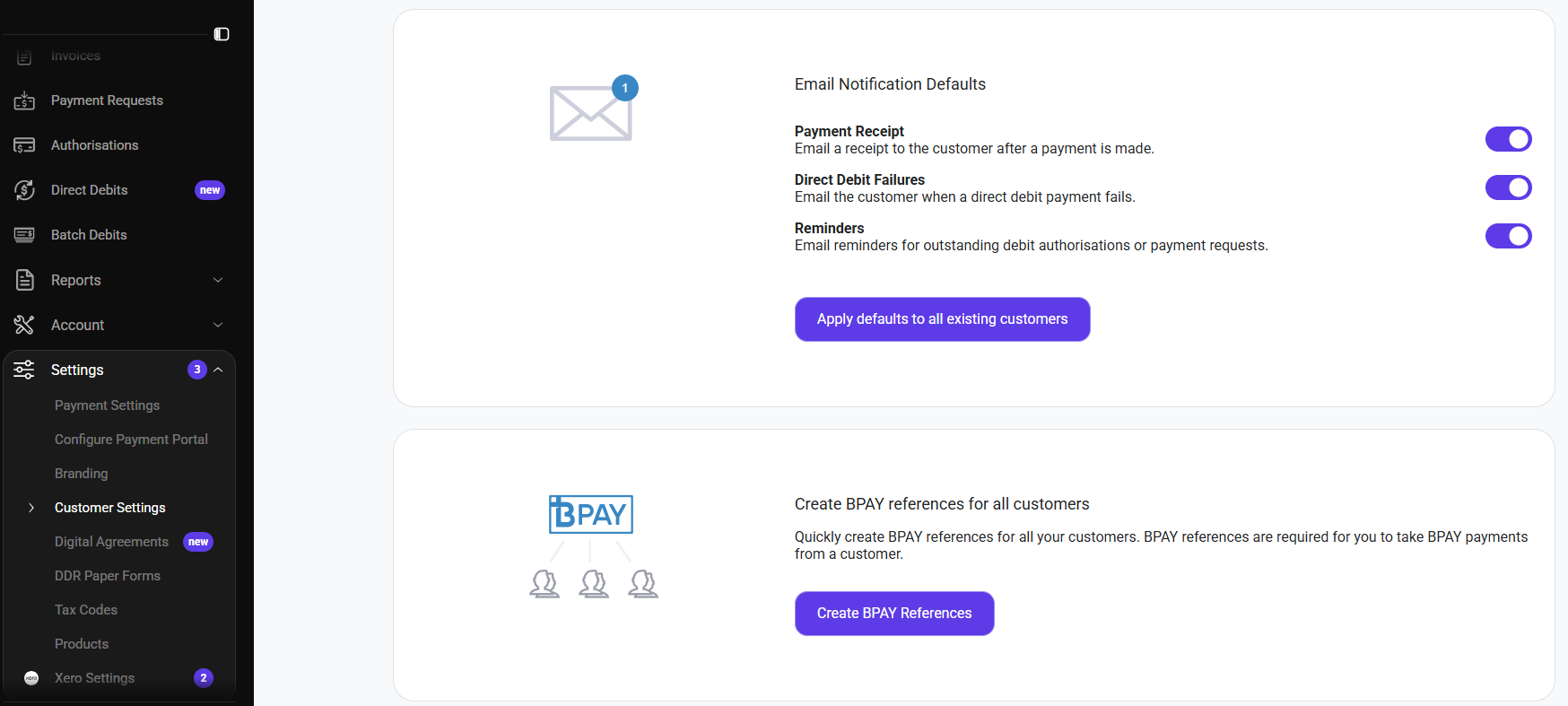
Settings > Customer Settings
From here, you can configure your default customer settings, including:
Email notification defaults – Choose which notifications customers receive by default.
BPAY reference numbers – Generate BPAY reference numbers for your customers.
Customer reference numbers – Create reference numbers to help identify and manage customers.
Default Due Dates – Set your standard due date preferences.
Default Invoice Settings – Configure the default settings used when creating invoices.
Default Payment Portal Settings – Control the default Payment Portal options available to your customers.
Setting these defaults can save time and help keep your customer, invoice and payment settings consistent, while still giving you the flexibility to adjust settings for individual customers when needed.
Related Articles
Was this helpful?
Still need help? Ask the team