Adding and Editing Customer Payment Accounts
Last updated 21 days ago
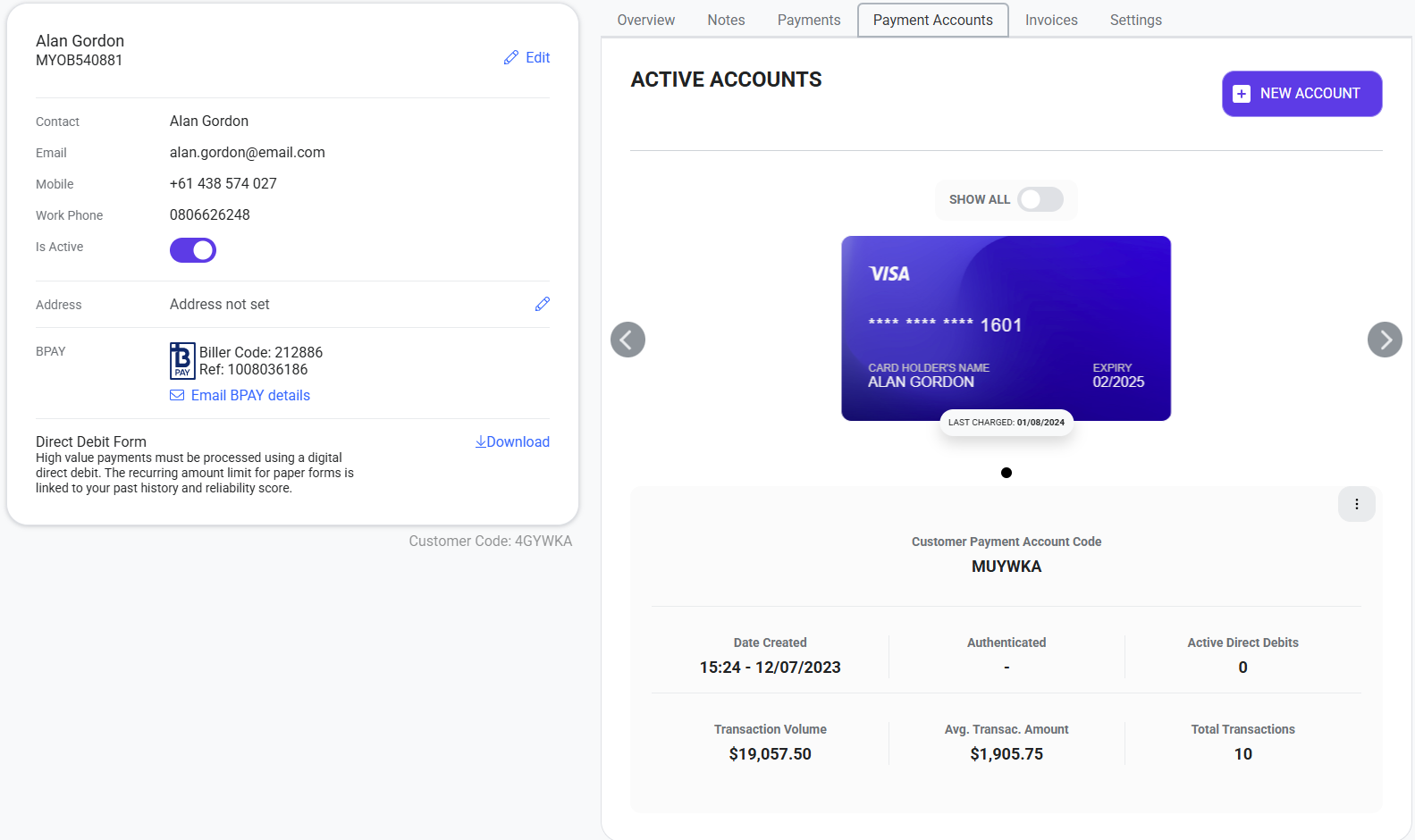
Payment Accounts allow you to securely save a customer's preferred payment methods against their Pay Advantage customer profile.
Saving payment details is particularly useful for returning customers, as they won't need to manually enter their card or bank account details each time they make a payment. When you send them a payment link, they can simply select from their available saved payment methods.
Add a Payment Account
To add a new payment account for a customer:
Select Customers from the left-hand menu.
Find and open the relevant Customer Profile.
Select the Payment Accounts tab.
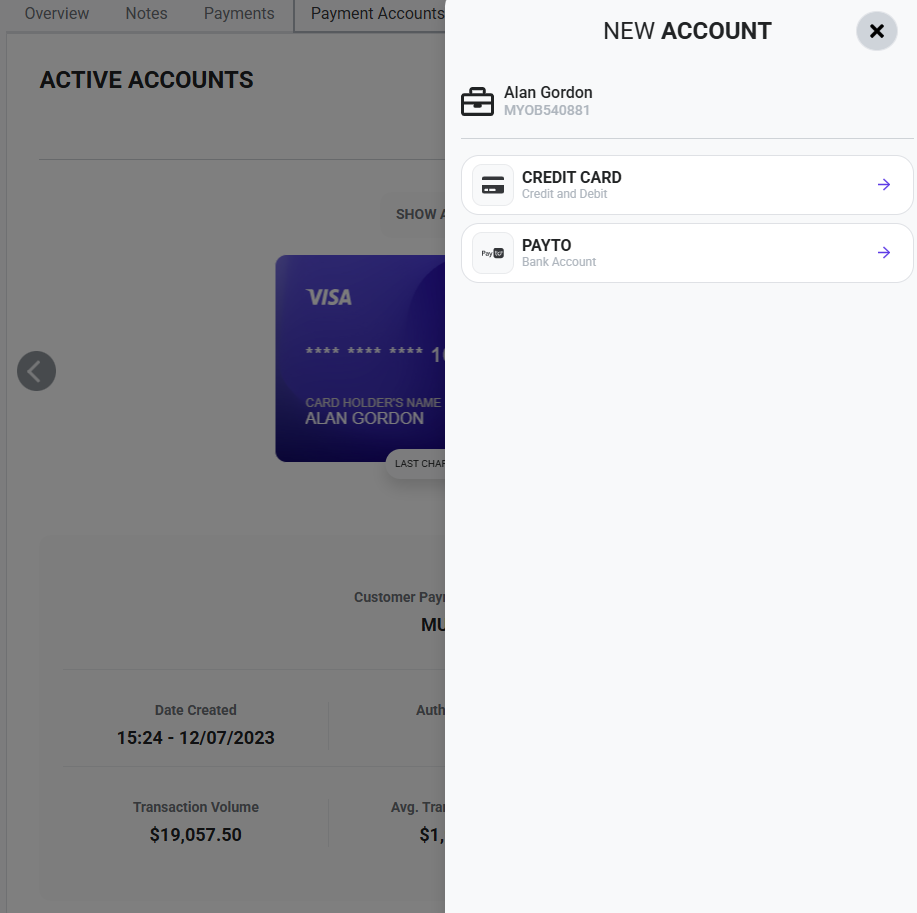
Select the option to create a new payment account.
Enter the customer's bank account or card details and save the account.
The payment method will then be securely stored against the customer's profile and can be used for future payments.
Set a Default Payment Account
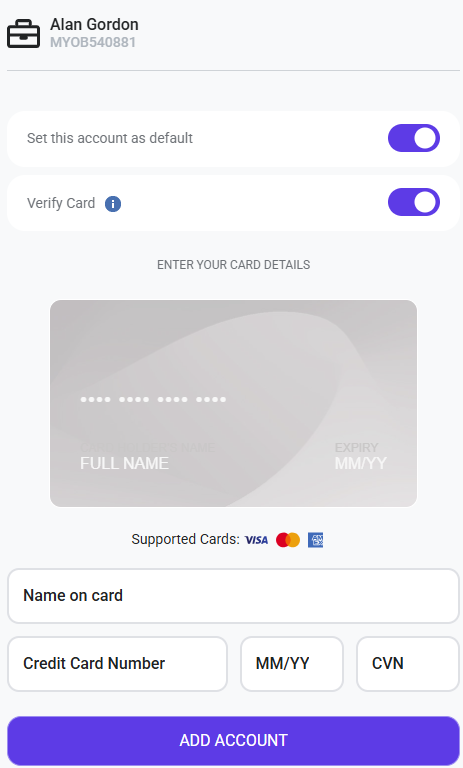
When adding a new payment account, such as a card, you can choose to make it the customer's default payment account.
Setting a default is helpful for customers with multiple saved payment methods, as it identifies their preferred account for future payments.
Verify a Card
When adding a card, you'll also have the option to verify the card.
Card verification confirms that the card details provided are valid. An authorisation fee of $0.22 applies when you choose to verify a card.
Saving Payment Details from a Payment Link
You don't always need to add payment accounts on behalf of your customers.
When a customer enters a new payment method through a payment link, they'll be given the option to save their payment details for future use.
Once saved, the payment method is stored against their customer profile. The next time you send them a payment link, they can select their saved payment method instead of entering their details again.
This can make the payment process quicker and easier for regular or returning customers.
Hide or Delete a Payment Account
If a customer's payment method is no longer required, you can either hide or delete it.
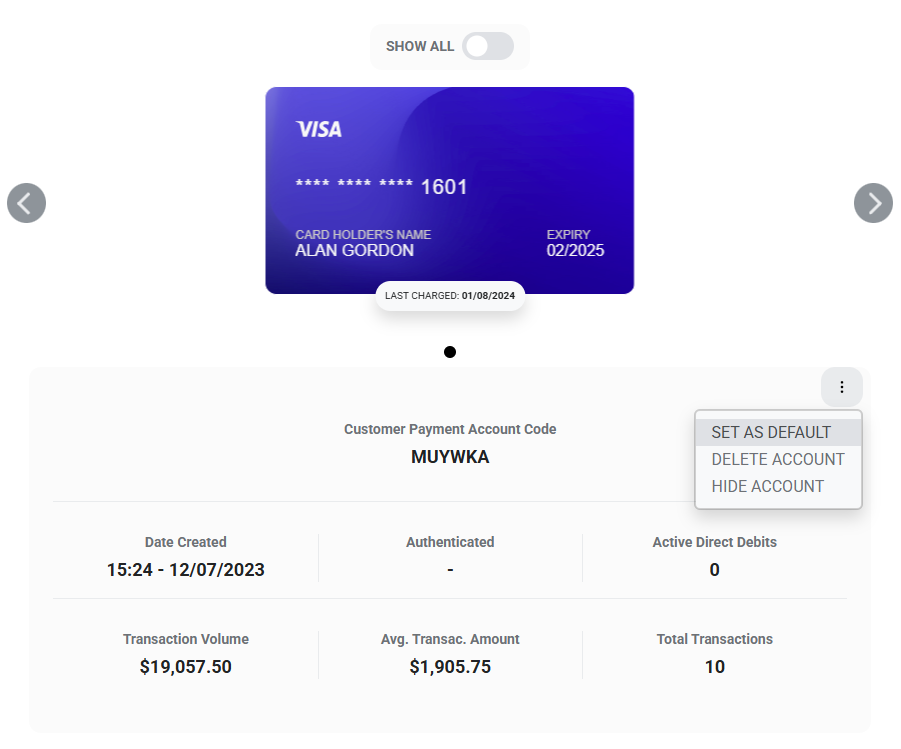
From the customer's Payment Accounts tab, locate the relevant account and select the three vertical dots in the top-right corner.
You'll have two options:
Hide Account – Archives the payment account so it is no longer available for the customer to select. The account is not permanently removed and can be unarchived again at any time.
Delete Account – Permanently removes the payment account from the customer's profile.
If you think the payment method may be needed again in the future, we recommend hiding the account rather than deleting it.
Was this helpful?
Still need help? Ask the team