Creating/Managing Users, Notifications & Permissions
Last updated 7 days ago
Control who can access your Pay Advantage account, what they can do and which updates they receive.
You can create unlimited users and tailor each person’s access to their responsibilities. This guide explains how to choose an access level, create users, manage permissions and notifications, and keep access up to date as your team changes.
Before you start
Give each person their own account
Every person who uses Pay Advantage needs their own account. Shared or generic users aren’t supported.
Individual accounts keep access and security checks tied to the right person. They also let you update or deactivate one person’s access without affecting other team members.
Each user needs their own email address and mobile number to complete setup and verification.
Choose the right access level
The access level you choose determines how much control someone has over your account.
Full Access gives someone significant control over your account. Generally, reserve this access for business owners. For most staff, start with Restricted and customise their permissions.
Creating a New User
Select Create from the main menu.
Select User.
Choose Full Access or Restricted.
Enter the user’s email address, first name, last name and mobile number.
Check their details, then select Create User.
Review their permissions and notification preferences after creation.
Using an overseas mobile number
An Australian mobile number isn’t required.
In the phone-number field:
Open the country-code selector beside the flag.
Select the country of the user’s mobile number.
Enter their mobile number.
The mobile number is used for two-factor authentication, which adds a verification step to help protect access.
What Happens After You Create a User?
Creating a user starts the activation process. The new user must complete their own setup before signing in.
Open the activation email sent to the address provided.
Select Activate and Sign In Now.
Follow the setup prompts to create a password and complete the required details, including date of birth and verification.
Enter the SMS verification code sent to the mobile number provided when prompted.
Select Sign In Now to complete setup.
Once activation is complete, the user can access the account with the permissions assigned to them.
Make sure their email address and mobile number are correct so they can receive their activation email and verification code.
Managing User Permissions
Permissions let you control what each user can access and manage. You can adjust individual permissions after creating a user.
Choose permissions based on the work the person needs to do. For example:
A salesperson could have permission to charge a card without permission to issue refunds.
A bookkeeper could have broader access to review transactions than a receptionist.
These are examples of how access can be configured. Review the individual settings and select the permissions appropriate for each person.
Update a user’s permissions
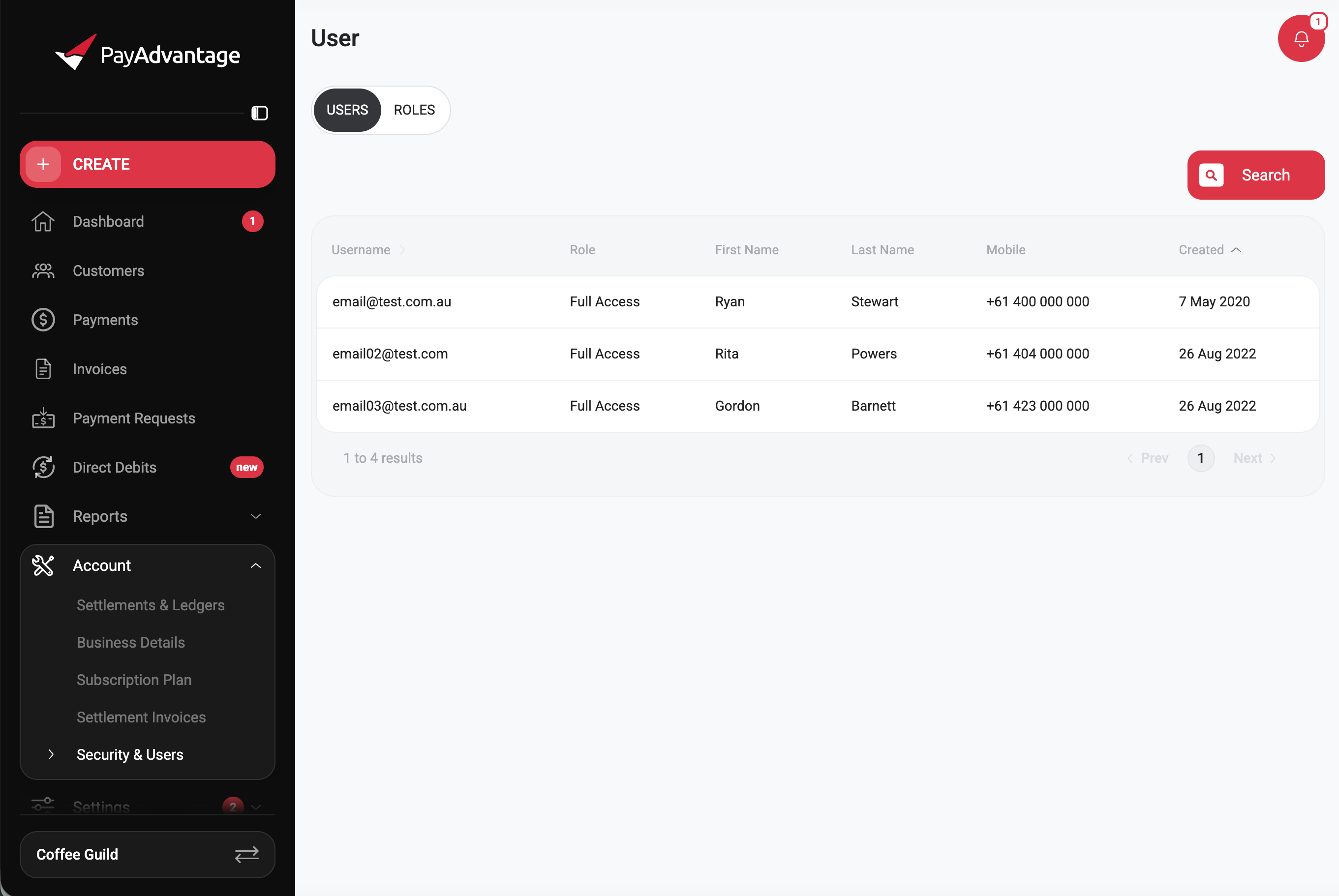
Open Account → Security and Users.
Select the relevant user.
Adjust their permissions.
Select Save.
Changes take effect immediately.
[Insert screenshot of the individual permission settings here, using an example user.]
Review permissions whenever someone changes roles, takes on new responsibilities or no longer needs access to particular features.
Managing Notifications
Notification preferences help each person receive updates relevant to their work.
Permissions control what someone can access and manage. Notifications control which updates they receive.
For example, a bookkeeper may want settlement updates, while another team member may need notifications about payment activity.
Manage your own notifications
Once logged in:
Open your user menu.
Select Profile & Notifications.
Review the available Email Notifications and Push Notifications.
Enable or disable the relevant options and save your changes.
Manage another user’s notifications
Open Account → Security and Users.
Select the relevant user.
Enable or disable the required notifications.
Select Save.
Choose notifications that match the person’s responsibilities and review them when their role changes.
Changing a User’s Email Address
Keep email addresses current so users can receive important account communications and sign in with the correct details.
Open Account → Security and Users.
Select the relevant user.
Under Username/Email, select Change.
Enter the new email address.
Select Email Verification Code.
Enter the code sent to the new email address to verify the change.
Once verified, the user can sign in using their updated email address.
Changing a User’s Mobile Number
Keep mobile numbers current so users can receive verification codes when required.
Open Account → Security and Users.
Select the relevant user.
Under Mobile, select Change.
Complete the security prompts using your Pay Advantage password and the requested SMS verification code.
Follow the prompts to enter the new mobile number. Select the appropriate country code if required.
Enter the verification code sent to the new mobile number.
Select Verify to complete the change.
If you can’t receive a required verification code, contact Pay Advantage Support for assistance.
Managing Access as Your Team Changes
You can create unlimited users, so each new staff member can have their own account.
Review access when:
Someone joins: Create their account and assign suitable permissions.
Their responsibilities change: Update their permissions and review their notifications.
They leave or no longer need access: Deactivate their access promptly.
Users can be activated or deactivated as your staffing needs change.
Edit a user
Open Account → Security and Users.
Select the relevant user.
Update their details or permissions.
Save your changes.
Remove a user
Select the relevant user and choose Remove User, subject to your access level.
Regularly Review Your Users
Review your user list periodically to check that:
Full Access is limited to people who need that level of control.
Each person has an individual account.
Permissions match current responsibilities.
Email addresses and mobile numbers are up to date.
Former staff no longer have access.
Notification preferences remain relevant.
Keeping user access current helps your team work efficiently while protecting sensitive account controls.
Was this helpful?
Still need help? Ask the team