Automatically pay Xero invoices with Charging Agreements
Let customers authorise once and have their Xero invoices, including repeating invoices, paid automatically as they fall due.
Last updated About 3 hours ago
Charging Agreements let your customers authorise Pay Advantage once, then have their Xero invoices paid automatically as they fall due. You keep invoicing in Xero exactly as you do now, including repeating invoices, and each payment is paid automatically and reconciled in Xero for you.
This is ideal when you want to manage all the invoices and billing from Xero for repeating customer payments such as regular invoices, memberships, rent or subscriptions. This avoid the customer having to pay each individual invoice
How it works
Your customer opens the Pay Now link on one of your Xero invoices.
They choose Set up automatic payments, add their card or bank account and sign the authority. The current invoice is paid straight away.
When you approve their next invoice in Xero, Pay Advantage schedules a payment for it.
On the due date (or the number of days after it that you choose), the invoice is charged and the payment is applied to the invoice in Xero.
Each invoice is charged as its own payment, so two invoices due on the same day create two separate payments. Payments are never taken before an invoice is due.
Before you start
Make sure that:
Your Xero organisation is connected and your Xero settings are complete. See Connect Pay Advantage & Xero.
Your customers can reach the Pay Now page, either through the Pay Now button on your Xero invoices or automatic Invoice Payment Request emails.
You can see Charging Agreements in the left-hand menu. If you can't, contact our support team to have it enabled on your account.
1. Turn on automatic payment of invoices
Log in to Pay Advantage.
Go to Settings > Xero Settings and open the Settings tab.
Scroll to Automatic Payment of Invoices.
In Which invoices we can pay automatically, choose an option from the table below.
In Days after the due date to take payment, enter 0 to charge on the due date, or a higher number to wait that many days longer.
Click Save.
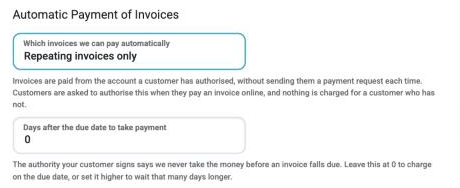
Note: The authority your customer signs says payment is never taken before an invoice falls due. The days setting can only charge the invoice after its due date.
2. What your customer sees
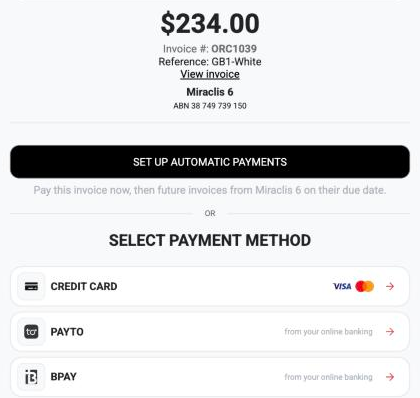
Nothing changes for customers who haven't set up automatic payments. They can keep paying each invoice by card, PayTo or BPAY as usual.
Single invoice - Customer can choose automatic payments
Repeating invoice - Customer must complete automatic payments
When a customer opens the Pay Now page for an eligible single invoice, they see a Set up automatic payments button above the usual payment methods. For a repeating invoice they are required to set up automatic payments.
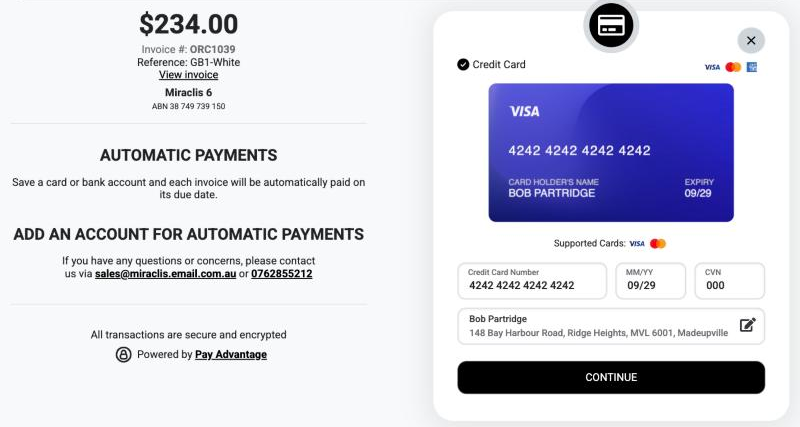
Add a card or bank account
The customer enters the card or bank account they want future invoices paid from, then clicks Continue.
Review and sign the authority
The customer reviews the agreement. It confirms that this invoice and future invoices from your business will be paid automatically from the selected account on or after their due date. They can also:
Choose whether to receive a reminder email before each payment.
Review any setup and dishonour fees.
Enter their name, sign, accept the terms and conditions and click Authorise.
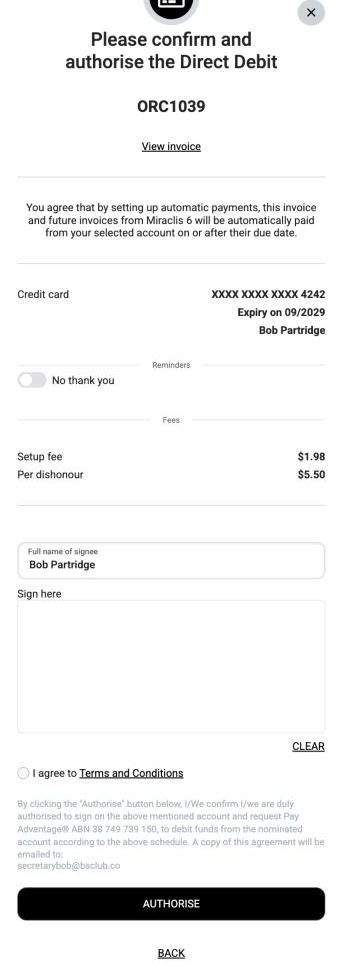
A copy of the signed agreement is emailed to the customer.
Confirmation
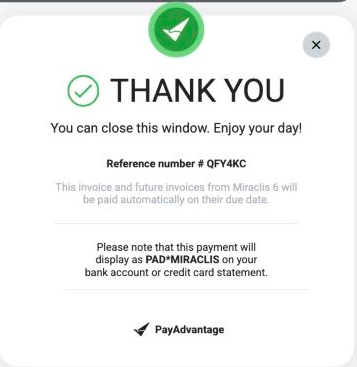
The customer sees a confirmation with a reference number. The current invoice is paid, and future invoices will be paid automatically on their due date.
3. Manage your Charging Agreements
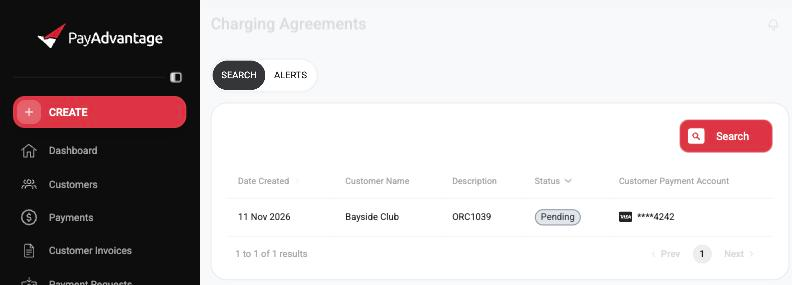
Open Charging Agreements from the left-hand menu to see every customer who has set up automatic payments. The list shows the date created, customer, description (the invoice they signed up from), status and the account being charged.
Charging Agreements are kept separate from your scheduled direct debits, so they do not appear in the Direct Debits list or search.
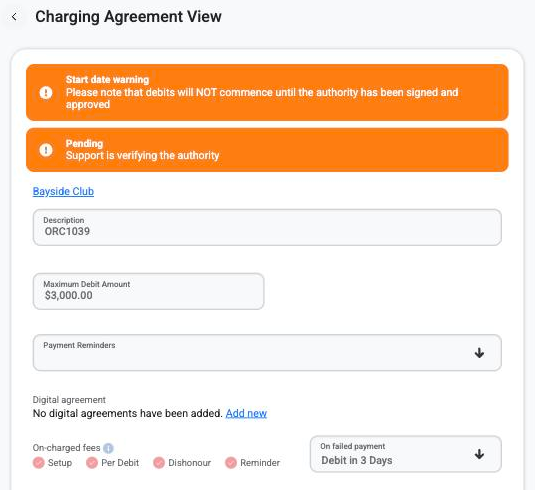
Click an agreement to open it. From here you can see and update:
Status: a new agreement may show Pending while our team verifies the authority. Payments do not start until it is approved.
Maximum Debit Amount: the most that can be charged for a single invoice under your account's limits.
Payment Reminders: whether the customer is emailed before each payment.
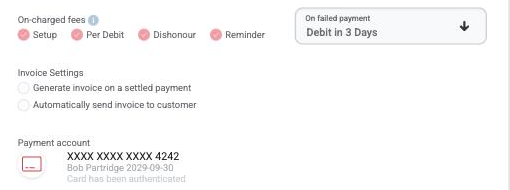
On-charged fees and On failed payment: which fees are passed on and what happens if a payment fails.
Payment account: the card or bank account that is actually charged.
Debit authority: the signed authorisation and when it was given.
How payments are handled
When an invoice isn't charged
If an invoice can't be charged safely, it is not charged. Instead, it is listed under Settings > Xero Settings > Issues to be resolved, with the reason.
The most common reason is that the invoice is more than the maximum amount allowed for the customer's payment method. To fix it, you can:
Ask the customer to switch to a credit card, which can have a higher limit than a bank account.
Contact our support team about raising your account limits.
Collect that invoice another way, such as a payment request.
Important: If you void or credit an invoice in Xero, do it well before its charge date. A void made shortly before the payment is taken may not stop the charge. If this happens, contact our support team.
Troubleshooting
My customer doesn't see Set up automatic payments
Check the Which invoices we can pay automatically setting is not set to Do not pay invoices automatically. If it's set to Repeating invoices only, the invoice must have been created from a repeating invoice in Xero.
I can't find Charging Agreements in the menu
Charging Agreements must be enabled on your account. Contact our support team.
An agreement is stuck on Pending
New authorities are checked by our team before payments start. If an agreement stays pending for more than one business day, contact support.
I need more help
Contact Pay Advantage Support on 1300 641 310 or email support@payadvantage.com.
Next Steps
Was this helpful?
Still need help? Ask the team