Enable Discounts with Incentivised Payments
Last updated 8 days ago
This feature gives you another way to manage payment costs by encouraging customers to choose your preferred, lower-cost payment methods.
You can offer customers a percentage discount when they pay using selected methods such as PayID, PayTo or Direct Debit. This can be particularly useful following recent changes to card surcharging, giving you a way to encourage lower-cost payment options while still giving your customers a choice in how they pay.
At checkout, customers will see “Save $X.XX” beneath any payment method you've chosen to discount. If they select that method, the discount is automatically applied to the total they confirm and pay.
To set this up, go to:
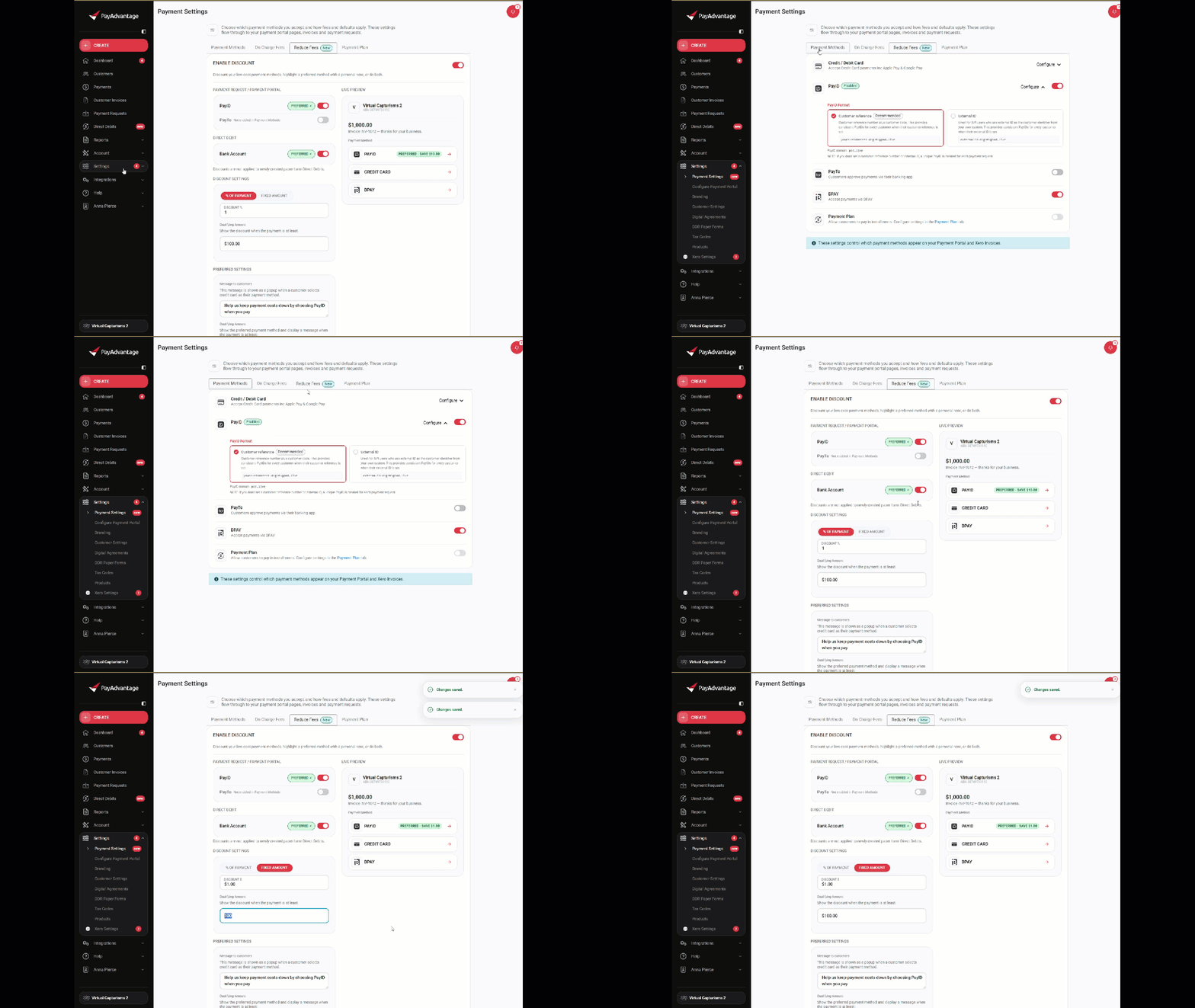
Settings on the left hand side menu panel > Payment Settings > Reduce Fees
From here, you can set a discount percentage and choose which payment methods you'd like it to apply to.
Set a discount between 0% and 10%. The default is 1%.
Choose from PayID, PayTo and Direct Debit. All three are selected by default.
Card and BPAY payments are not eligible for discounts.
Choose how you encourage customers
You can customise how each payment method is presented to your customers. You can:
Discount your lower-cost payment methods to give customers a financial incentive to use them.
Highlight a preferred payment method and add your own message to help guide customers towards that option.
Use both a discount and a preferred payment method together.
Each payment method can be configured independently, giving you control over which options you want to encourage based on what works best for your business.
Payment Discounts Extended to Bank Account Direct Debits
Reward customers who pay by bank account, every single cycle.
Enabling Discounts with Incentivised Payments gives you another way to manage payment costs by encouraging customers to choose your preferred, lower-cost payment methods.
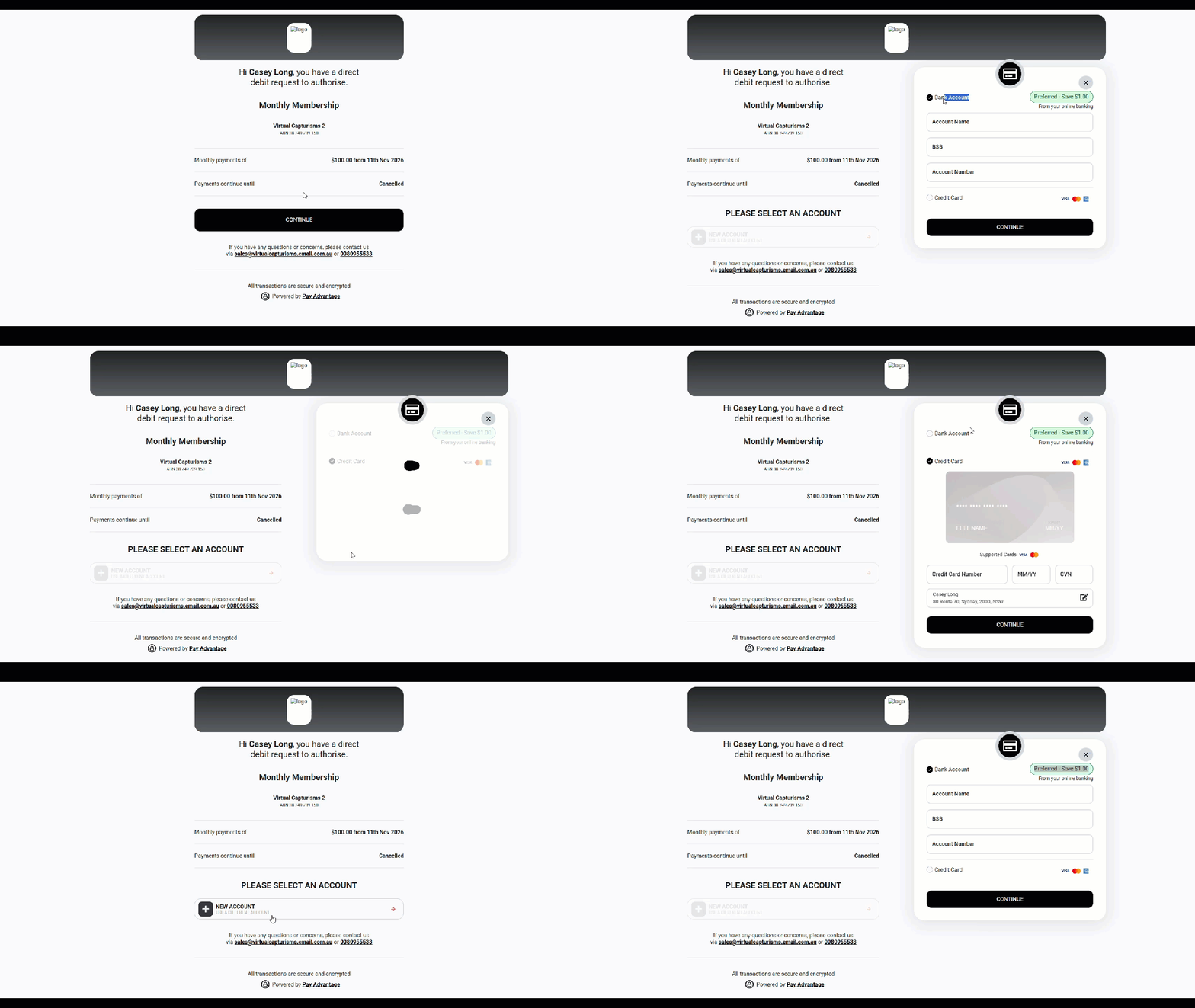
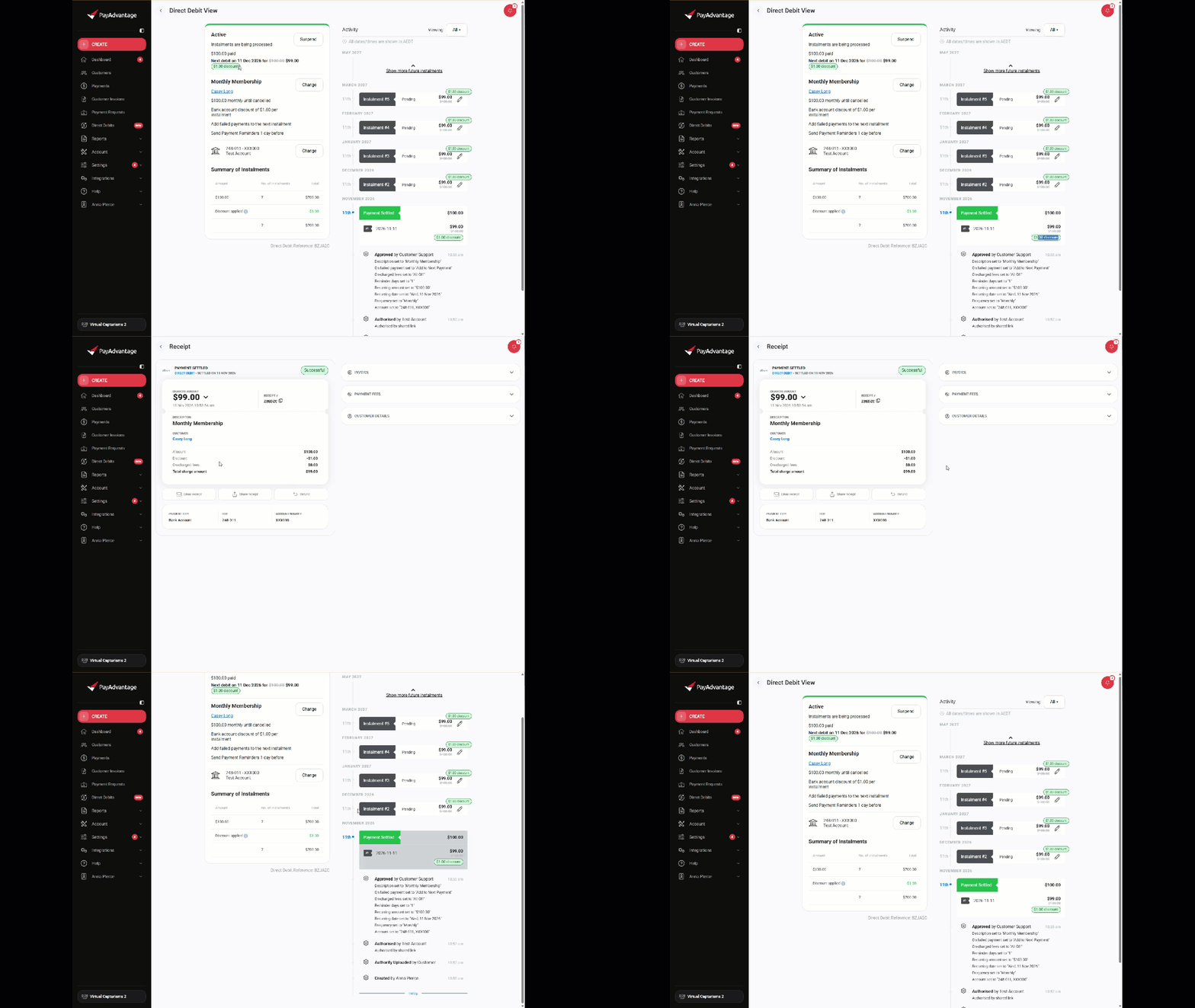
Your bank account payment incentives now carry over directly to recurring direct debits. When customers set up a new bank account debit online—or use our self-serve tools to switch an existing debit away from a credit card—they clearly see the savings before they authorize. Every ongoing cycle after that automatically charges at the discounted rate.
What each setting does
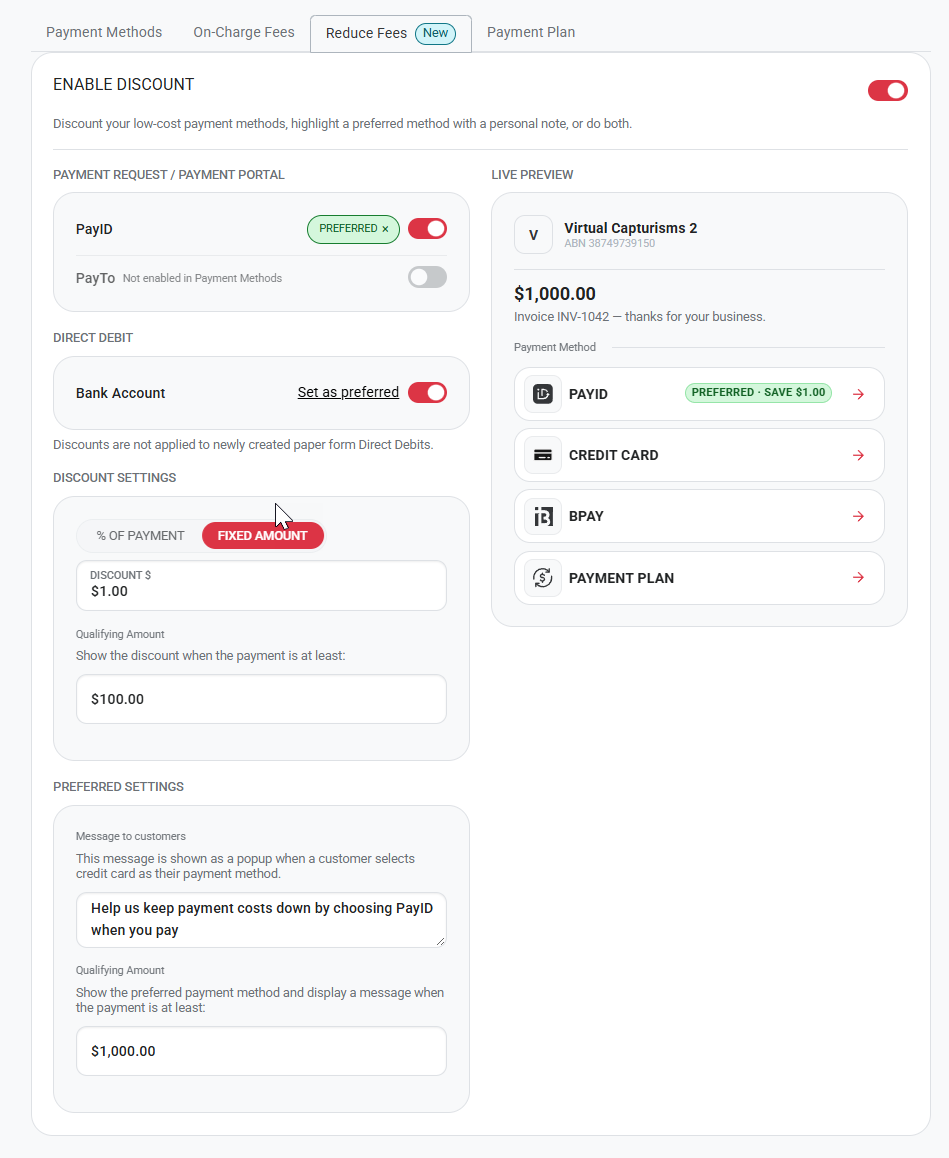
Enable Discount is the switch at the top of the page. It turns the whole feature on or off. While it's off, customers see no discounts or Preferred badges, and your settings are kept for when you turn it back on.
Payment Request / Payment Portal (PayID and PayTo)
Discount switch: offers your discount when a customer pays an invoice or payment request with this method. They see “Save $X.XX” beneath it at checkout.
Set as preferred: adds a Preferred badge to this method, and shows your message to customers if they choose credit card. Only one of PayID or PayTo can be preferred. Click the × on the badge to remove it.
If a method says Not enabled in Payment Methods, turn it on in the Payment Methods tab first.
Direct Debit (Bank Account)
Discount switch: offers your discount on direct debits paid from a bank account. Customers see “Save $X.XX” when they set up the direct debit online, and every instalment after that is debited at the discounted amount.
Set as preferred: lists bank account above credit card, with a Preferred badge, when a customer sets up a direct debit or changes how they pay. A customer's existing default account still shows first.
Discount Settings (available once at least one discount switch is on)
% of payment or fixed amount: choose a percentage between 0.1% and 10%, or a fixed amount up to $999.99. The same discount applies to every method you've switched on.
Qualifying amount: the discount only applies when the payment, or each direct debit instalment, is at least this amount.
Preferred Settings (for PayID and PayTo)
Message to customers: shown in a popup when a customer chooses credit card on an invoice or payment request. Up to 200 characters.
Qualifying amount: the preferred method and your message only show when the payment is at least this amount.
The Live Preview on the right shows how the payment options will look to your customers as you change these settings.
Good to know for direct debits
Existing direct debits only get the discount when the customer switches from card to bank account using a change payment method link. Direct debits that stay on their current method don't change.
Direct debits set up with a paper form don't get the discount.
Direct debits created from Xero invoices don't get the discount.
The discount isn't applied if it would take an instalment below the $5.00 direct debit minimum.
Was this helpful?
Still need help? Ask the team