Refunding a Payment
Last updated 3 days ago
You can issue refunds for payments received via credit card or direct debit back to the customer’s original card or bank account. Both full and partial refunds are supported.
❗ Please note: BPAY payments cannot be refunded through the Pay Advantage platform. If a customer requests a refund for a BPAY payment, you will need to manage this outside of the system.
When a Refund Is Available
The Refund button will appear for a payment only if all of the following are true:
The payment has cleared
The payment has not failed
The payment is not part of a dispute
The payment is not a BPAY transaction
How to Issue a Refund
From the side menu, go to Payments
Search for and open the payment you want to refund.
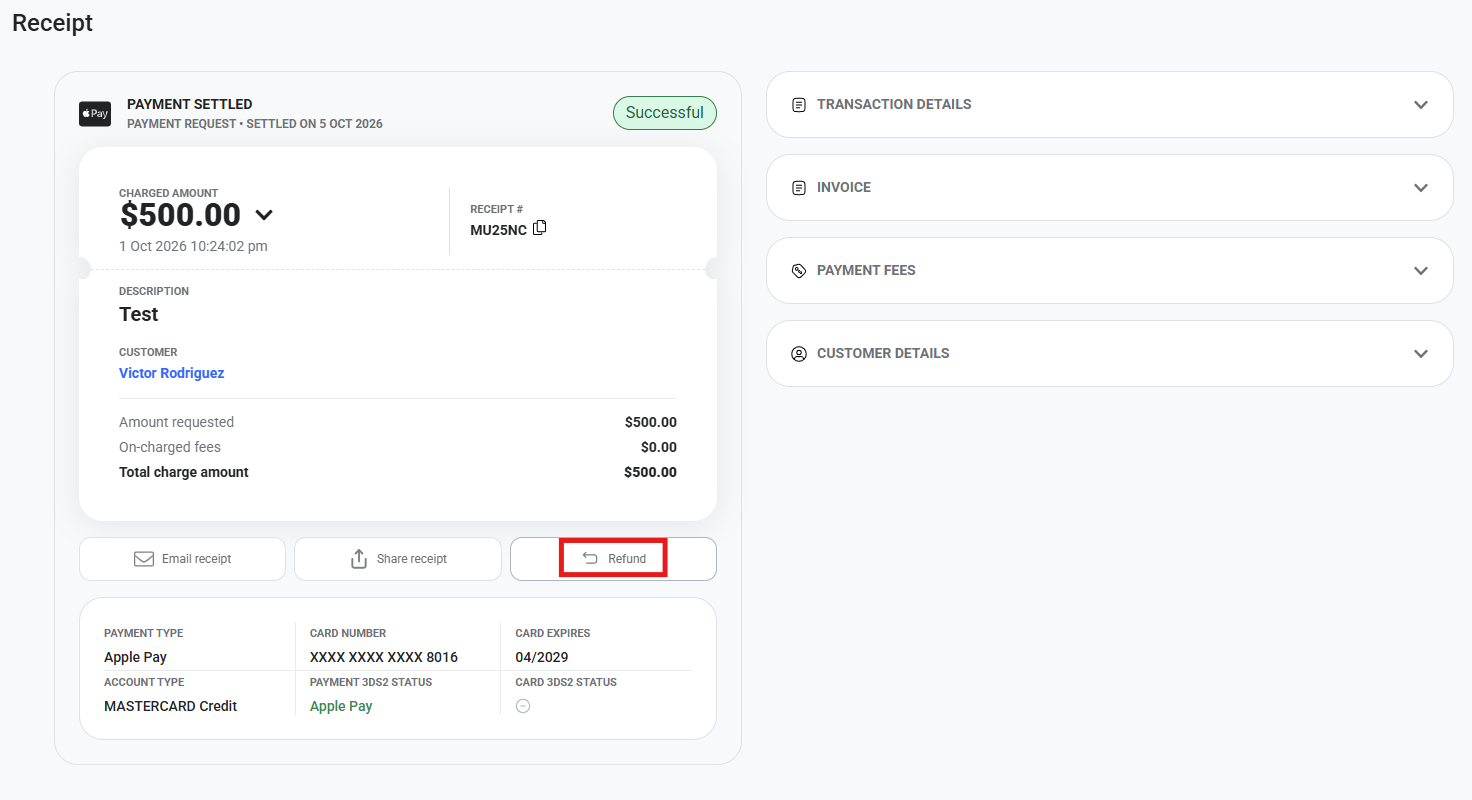
Click Refund Payment.
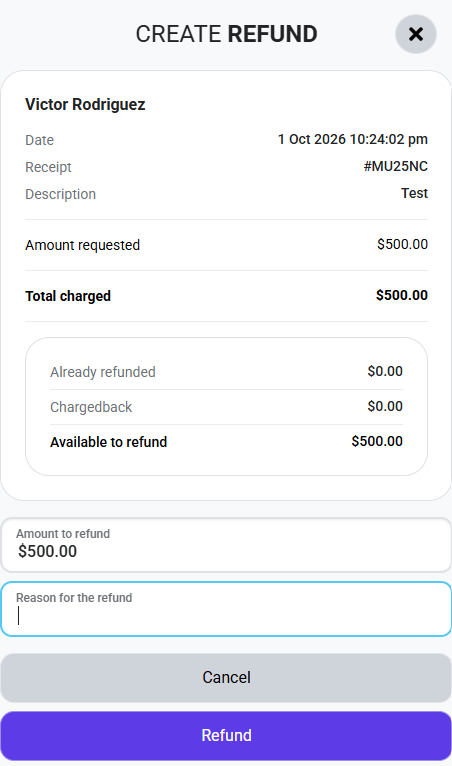
Enter a refund reason and confirm the amount you want to refund (full or partial). Then select Refund to submit.
How Refunds Are Processed Behind the Scenes
To refund a customer, funds must first be moved back from your account to the customer’s account. This is how it works:
Once a payment has settled into your account, Pay Advantage initiates a chargeback to recover the funds.
Those funds are moved back to Pay Advantage, and then we process the refund to the customer’s bank.
The customer’s bank must verify and clear the refund before it is complete.
This process can take up to 10 business days in some cases.
What happens if a refund fails?
Sometimes a refund cannot be completed. This may happen if:
The customer's card or bank account has been closed.
The receiving bank rejects the refund.
The customer's bank is unable to process the transaction.
When this happens, the refund will show as Failed, and the funds will remain allocated to that refund.
To release these funds back to your Pay Advantage ledger, you'll need to cancel the failed refund.
Who can cancel a failed refund?
Only users with full access can issue or cancel refunds.
If you're a restricted user, the Refund or Cancel buttons will not be available.
You'll need to ask a full-access user on your account to complete the action or update your user permissions.
Option 1: Cancel from the Dashboard
Go to your Dashboard.
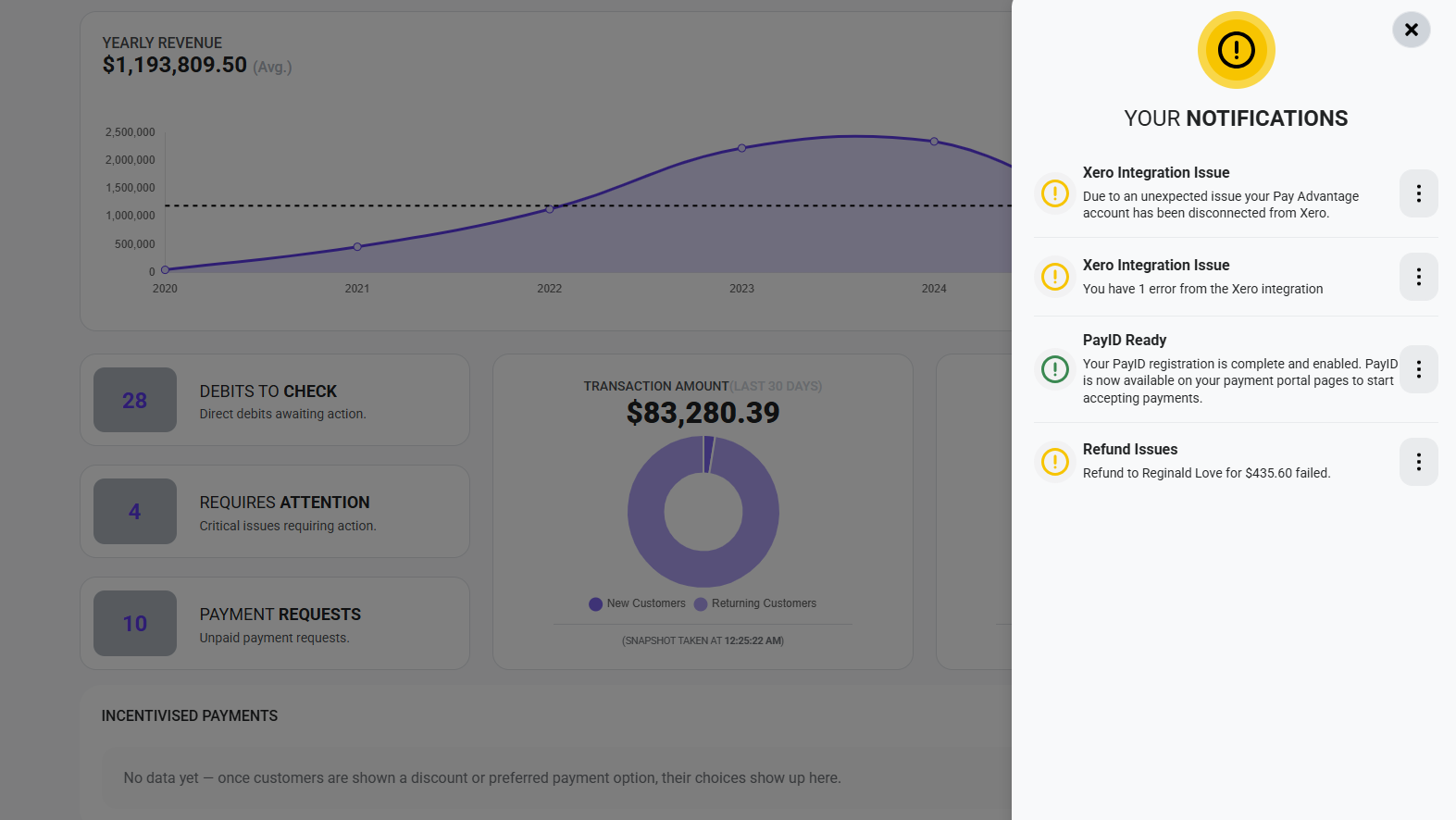
Find the Requires Attention section at the bottom left of the page.
Select Refund Issues.
Review the reason the refund failed.
Click Cancel Refund.
Option 2: Cancel from the payment receipt
Go to Payments from the side menu.
Search for and open the original payment.
Open the Refund tab on the payment receipt.
Find the failed refund.
Click Cancel.
What happens after cancelling a failed refund?
Once the failed refund has been cancelled:
The refund amount is released back to your Pay Advantage ledger.
The funds are included in your next settlement, usually on the next business day.
Your customer will not have received the refund, so you'll need to arrange an alternative way to return their money.
Refunds to Different Cards or Bank Accounts
For fraud prevention and compliance purposes, refunds should be processed back to the original payment method.
Refunds to Cards
If the original card is inactive or expired, the refund will still be processed to the same card account.
Expired Cards
Most banks will automatically transfer the funds to the customer’s linked account or issue a replacement card connected to the same account.
The refund should still be received successfully.Closed or Inactive Cards
If the card or account has been closed, the refund may be rejected by the bank and returned to the merchant.
In these cases, additional action will be required.
If a Refund Cannot Be Processed to the Original Method of Payment
If a refund cannot be successfully processed to the original payment method:
Contact Your Customer
Inform them that the refund could not be completed to their original card or account.Request Alternative Details
Ask the customer to provide an alternative payment method (e.g. a bank account).Process a Manual Refund
Issue the refund outside of Pay Advantage using the alternative details provided.Keep Records
Maintain clear records of:Communication with the customer
Refund attempts
Final refund method
This is important for audit purposes and in case of any future chargebacks.
Need help?
If you're having trouble processing or cancelling a refund, contact the Pay Advantage Support Team for assistance.
Was this helpful?
Still need help? Ask the team